

- Xero in Australia, New Zealand & the United Kingdom.
- QuickBooks Online
- MYOB Business in Australia
To get started, activate the Automated Timesheet Sync Add-on
Go to Settings > ServiceM8 Add-ons, and activate Automated Timesheet Sync, then click Settings.
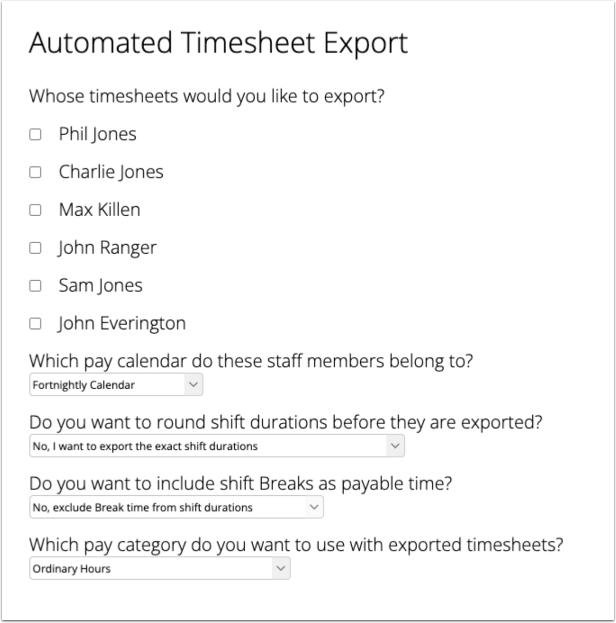
- Which staff members to export timesheets for;
- The pay calendar you use for these staff members e.g. weekly, fortnightly, monthly;
- Whether you want to round exported shift durations to the nearest 15 mins, or send exact times;
- Whether you want to include Break time as part of the exported shift durations
- The pay category to use for exported times (not required for all accounting packages).
 ServiceM8 will first export timesheets for the most recently-ended pay period to your accounting package. This ensures that the settings are valid for future timesheet exports.
ServiceM8 will display a preview of the timesheet information that will be exported. Click Next to export the data and enable Automated Timesheet Export.
ServiceM8 will first export timesheets for the most recently-ended pay period to your accounting package. This ensures that the settings are valid for future timesheet exports.
ServiceM8 will display a preview of the timesheet information that will be exported. Click Next to export the data and enable Automated Timesheet Export.
 If the export process completed successfully, you will see a success message, and Automated Timesheet Export will be activated.
At the end of each pay period, ServiceM8 will export timesheets for the selected staff using the timesheet category you selected.
If there were any errors exporting timesheets for any selected staff, they will be displayed on this page along with information about how to resolve the error. You will need to resolve all errors before Automated Timesheet Export can be activated.
If the export process completed successfully, you will see a success message, and Automated Timesheet Export will be activated.
At the end of each pay period, ServiceM8 will export timesheets for the selected staff using the timesheet category you selected.
If there were any errors exporting timesheets for any selected staff, they will be displayed on this page along with information about how to resolve the error. You will need to resolve all errors before Automated Timesheet Export can be activated.