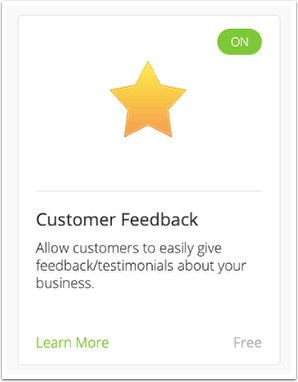
To start collecting customer feedback, activate the add-on in Settings > ServiceM8 Add-ons.
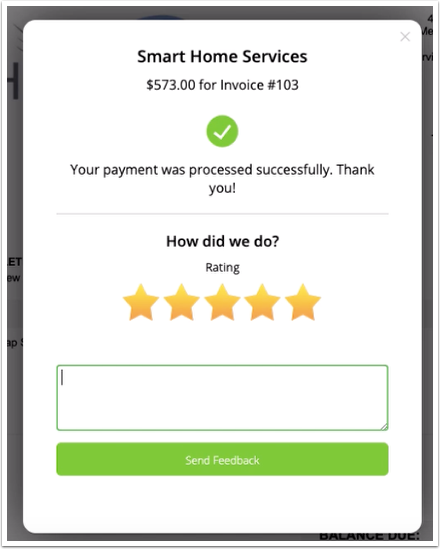
When the Customer Feedback Add-on is activated, customers will be asked to leave feedback after they pay their invoice online
If the customer doesn’t pay their invoice online you can set up a Customer Feedback Automation to email them after they have paid their invoice.
See the Customer Feedback Automation help article to learn how to set this up. Note the automated request won’t send if the customer has already provided feedback.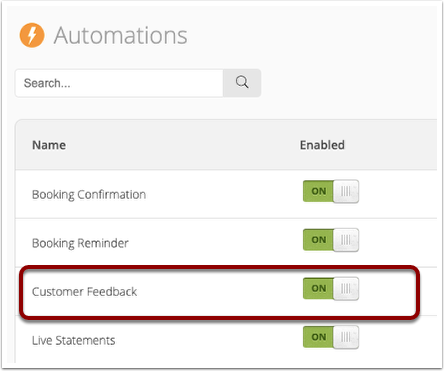
Alternately you can add the feedback link to your invoice email template. Go to Settings

Click Email Templates
Click Edit

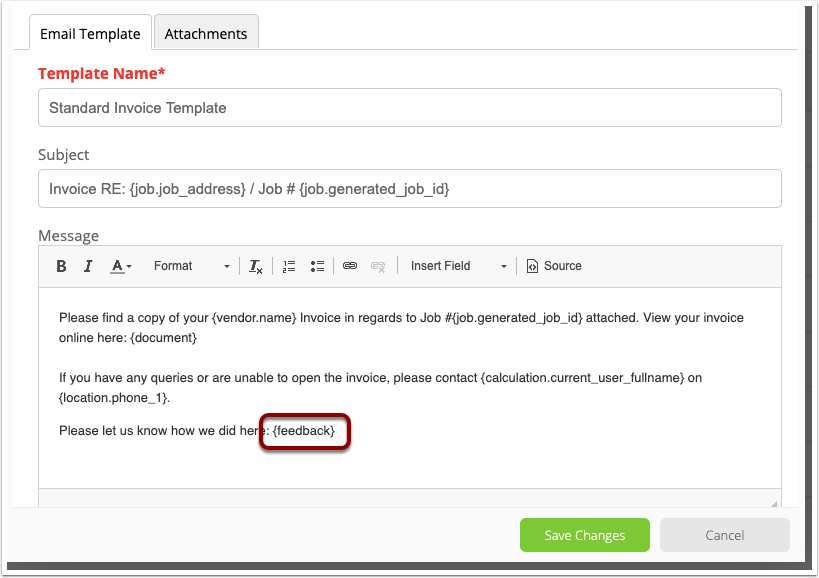
Enter the {feedback} field where you would like the feedback link to appear.
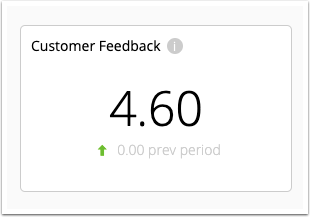
For a quick snapshot you can view your average star rating on the Business Dashboard
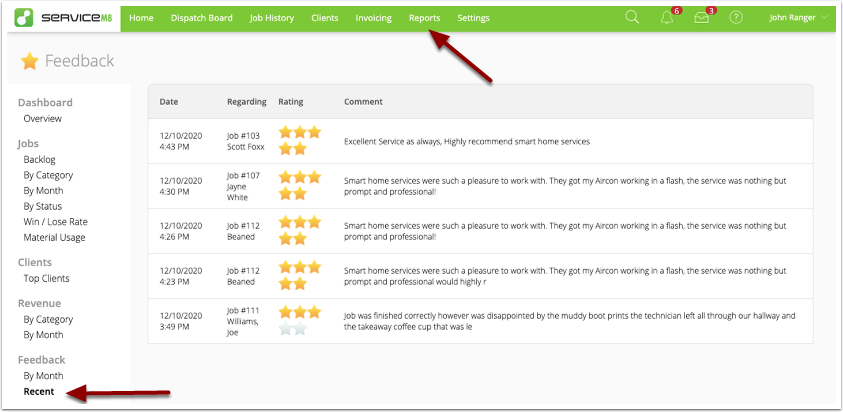
You can see your most recent feedback in the ‘Recent’ Feedback report, and keep track of your progress with the ‘By Month’ report