When you created your account, ServiceM8 set up default invoice and quote templates populated with your company details. However, every business is different. If the default templates don’t meet your needs, it’s easy to select new ones! ServiceM8 offers a wide variety of invoice and quote template designs.
To browse available invoice and quote templates:
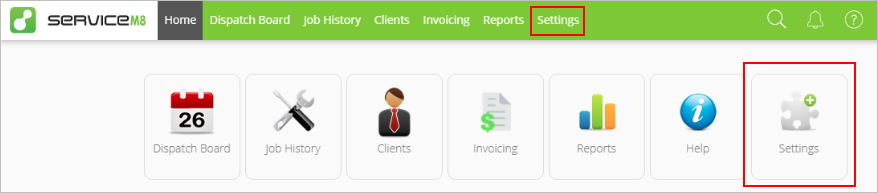
- From the Online Dashboard, click Settings.

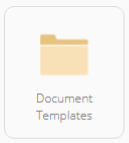
- Click Document Templates.

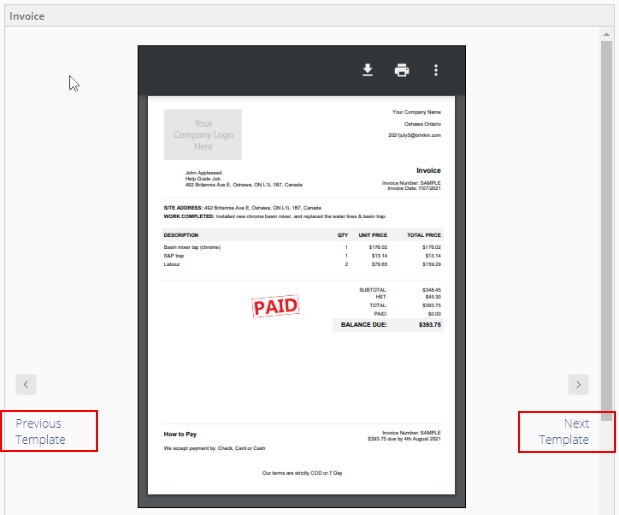
- On the left menu, select Invoice or Quote, depending on which template you would like to change. Your current template will be shown.


- Click Next Template (or Previous Template) to scroll through the different templates.

- Breakdowns by individual line items (materials or services)
- Material and labour subtotals
- Total amount only
- Bank account details
- Detailed job description

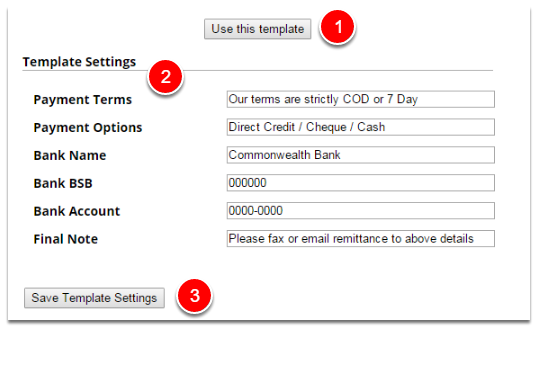
- Once you have found a template you like, click Use this template.
- Scroll down to Template Settings. Different templates will have different available built-in fields, such as payment terms or notes to customers.
- Fill in the fields, then click Save Template Settings.