

Selecting your Agent Setup Method
Access the ServiceM8 Phone Agent settings by going to Account > Settings > ServiceM8 Phone. Under ServiceM8 Phone Agent, click Settings.
- The Structured Agent Setup method (Recommended), which lets you choose your Agent’s personality and add FAQs to guide its responses.
- The Custom Agent Setup method, which lets you describe your Agent’s personality and add business information in a free text field.

Using the Structured method
To use the Structured setup method, you must complete two sections:- Agent Profile: Set your Agent’s name, then use the dropdown to assign them a preset personality type. You can select between “Friendly and casual” or “Professional and succinct”. Both are courteous and helpful, so choose the one that best matches your brand voice.
- FAQ Management: Enter the most common questions that callers will ask about your business, for your Agent’s reference.
 When you are happy with your setup, go to the top of the page and click Save.

Adding FAQs
Click Add FAQ in the FAQ Management section, populate the Question and Answer fields, then click Add FAQ. Add each question and answer as separate FAQs, such as:- What services do you provide?
- What do your services cost?
- Where are you located and what areas do you serve?
- What are your business hours?
- Do you service commercial properties?
- What services are outside your scope?
- How can we pay for your services?
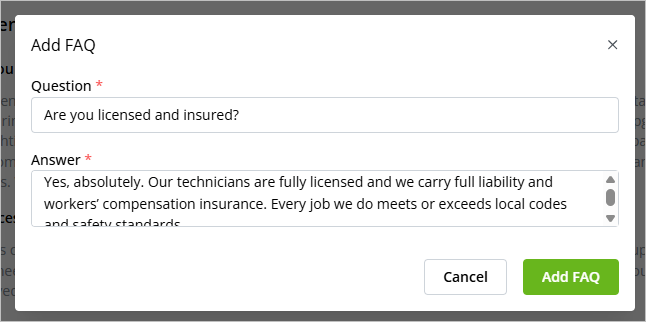
Editing or removing FAQs
To edit or remove an FAQ, click ⋮ next to the question, then click Edit or Remove.
Best practices for FAQs
Regardless of which setup method you choose, remember that the FAQs you set act as your Phone Agent’s source of truth. It won’t pull details from your website, ServiceM8 job data, or anywhere else. This gives you control over what your Agent says, but it also means the quality of its answers depends entirely on what you provide. That’s why it’s important to follow these best practices: 1. Keep it current. Update the FAQs whenever your services, pricing, or hours change. 2. Think like a client. You know your clients best and can add FAQs for what people call about the most. If you get a lot of calls about specific products, services or issues, be sure to add FAQs which cover them. 3. Be specific. Avoid vague or overly general answers, so your Phone Agent can provide useful, professional answers. Some examples:- What services do you provide?
- Bad: “We do electrical work.”
- Good: “We provide residential electrical services, including electrical panel upgrades, wiring replacement, EV charger installations, ceiling fan installations, kitchen and bathroom exhaust fans, generator installations, indoor and outdoor lighting, hot tub and pool wiring, inspections, and emergency service calls.”
- Where are you located and what areas do you serve?
- Bad: “We’re based in Melbourne, but work a bit outside too.”
- Good: “Our office is in Melbourne, and we service all metro suburbs plus Geelong, Ballarat, and Bendigo.”
Using the Custom method
If you want finer control over your Agent’s personality, the phrasing they use, or the way you enter business information and FAQs, you can to Agent Setup Method to Custom: With the Custom Agent Setup Method, the FAQ Management area will be replaced by a Custom Instructions free text field, with a preset template you can use as a starting point. The template has two main sections: Tone and Style, and General FAQ.

1. Tone & Style
The Tone & Style section defines how your Phone Agent speaks to your clients, letting you match its communication style to your brand. You can:- Name your agent. The default name for your Agent is Kora, but you can change this to fit your business.
- Adjust communication style. The template includes default acknowledgments, transitions, empathy phrases, and closings, such as:
- Positive acknowledgments: “No worries,” “Sure,” “Yeah definitely”
- Understanding responses: “Yep,” “Okay,” “Got it”
- Natural transitions: “Let me see here,” “Let’s have a look,” “Just to clarify…”
- Empathy: “Oh no, that sounds serious,” “Fair enough,” “I hear you there”
- Closings: “So, just to confirm,” “Thanks for calling,” “Have a great day”

2. General FAQ
The General FAQ section lets you set clear answers to the most common questions customers ask. While you can add or remove as many FAQs as you’d like, always use the Q: / A: format provided in the template. This ensures the Phone Agent can correctly match client questions with your responses, rather than misinterpreting freeform notes. NOTE: See the Best Practices for FAQs section for tips to ensure your Agent represents your business properly.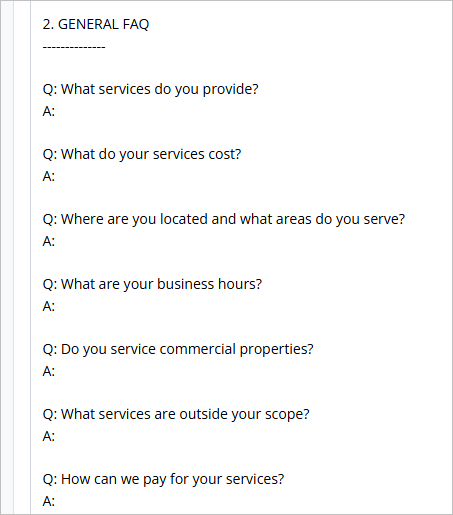
 Note that it’s possible to use a mix of setup methods — for example, you can use the Custom Agent Setup Method here in your main settings, and use the Structured Agent Setup Method for each Agent mode you intend to use (Business Hours, After Hours and/or Voicemail).