

 Similar to how you set up your Agent and add FAQs covering your business information, each Agent mode lets you choose between the Structured Agent setup and the Custom Agent setup. It’s recommend that you start with the Structured Agent setup, which will lead you through the most common scenarios that your Phone Agent may encounter. However, note that you can use a mix of setup methods if needed.

Agent Capabilities & Actions
When using the Structured Setup Method, your Phone Agent can perform the following actions in each mode (Business Hours, After Hours & Voicemail):- Create Online Booking: collect client details (name, contact, address, service requirement) and submit the Simple Online Enquiry form. There is the added option to ‘Allocate to On-Call staff member as Urgent’.
- SMS Link to Online Booking: send a text message to the caller containing a link to your Simple Online Enquiry form. There is the added option to ‘Allocate to On-Call staff member as Urgent’, should the caller proceed to submit the form following the call.
- Transfer to Business Hours/On Call: transfer the call through to your Business Hours call group (if it’s during business hours), or the staff member set as On Call.
- Transfer to Staff Member: transfer the call to a specific staff member.
- Transfer to Phone Number: transfer the call to a specific phone number. The number must be listed against a Staff Member in ServiceM8 for the transfer to work.
- Record Message: take a message and send to your ServiceM8 Inbox, with call recording attached.
- Provide Information from FAQs: respond to the customer’s query referencing the business and service information you’ve added in your FAQs.
How to use the Structured Agent Setup Method
1. Whether you’re setting up your Business Hours, After Hours or Voicemail agent, the first step is to set how your agent answers the phone: 2. Review and edit the actions set for how the agent should handle the various scenarios and reasons people call your business:
 3. Repeat this process for each agent mode you intend to use (i.e. Business Hours, After Hours, Voicemail), keeping in mind that it’s possible to have different actions for the same types of scenarios and requests, depending on the agent mode.
Custom Agent Capabilities
If the scenarios and options available with the Structured Setup Method don’t meet your needs, there is a way to provide more customised instructions when setting up your agent, with the Custom Agent Setup Method. The Custom method is available to use in each agent mode (Business Hours, After Hours, Voicemail), as well as your main Phone Agent Settings where you add FAQs and business information. Note that it’s possible to use a mix of setup methods — for example, if you just need to add a few custom scenarios and instructions for how your agent answers After Hours calls, you can use the Custom method there, and run with the Structured setup everywhere else. In addition to the actions available with the Structured method, when using the Custom Agent Setup Method, your Phone Agent can also perform the following actions:- Transfer to Call Group: transfer the call to any one of your ServiceM8 Phone call groups. Available groups are:
- “Default” (automatic based on the time of day)
- “Business Hours”
- “Business Hours Secondary”
- “After Hours”
- “After Hours Secondary”
- Transfer to Requested Staff Member: transfer the call to the staff member the caller is requesting e.g. if someone calls asking to speak to John, the Agent will transfer them to John.
- Check Address: verify the customer’s location and check distance from your office (useful for service area restrictions). For example: “Check if the customer’s address is within 100km of our office. If yes, proceed with booking. If no, apologise and tell them we only provide urgent services with 100kms.”
How to use the Custom Agent Setup Method
1. To use the Custom Agent Setup Method for an agent mode, scroll down to the bottom of the page and change the Agent Setup Method to ‘Custom’. 2. This will switch the setup method to a free-text experience, offering more flexibility to instruct your agent, in your own words:
 An easy way to organise your Custom instructions and procedures, is around the actions your agent is capable of taking, like:
1. AGENT HANDLES DIRECTLY
Used for calls your agent can fully resolve without human assistance, such as:
An easy way to organise your Custom instructions and procedures, is around the actions your agent is capable of taking, like:
1. AGENT HANDLES DIRECTLY
Used for calls your agent can fully resolve without human assistance, such as:
- Service information → Providing information from FAQs
- New booking request → SMS Link to Online Booking
- Booking changes → Transfer to Business Hours Call Group
- Payment processing → Transfer to Helen
- Service complaints → Transfer to Phil
- Unknown questions → Transfer to Business Hours Call Group
- Callback requests
- Sales calls
- Items that can’t be handled outside business hours
- Angry or upset customers → Transfer to Business Hours Call Group
- Situations not covered by other rules → Transfer to Business Hours Call Group
- Calls that aren’t progressing well → Transfer to Business Hours Call Group
Customising for each Agent mode
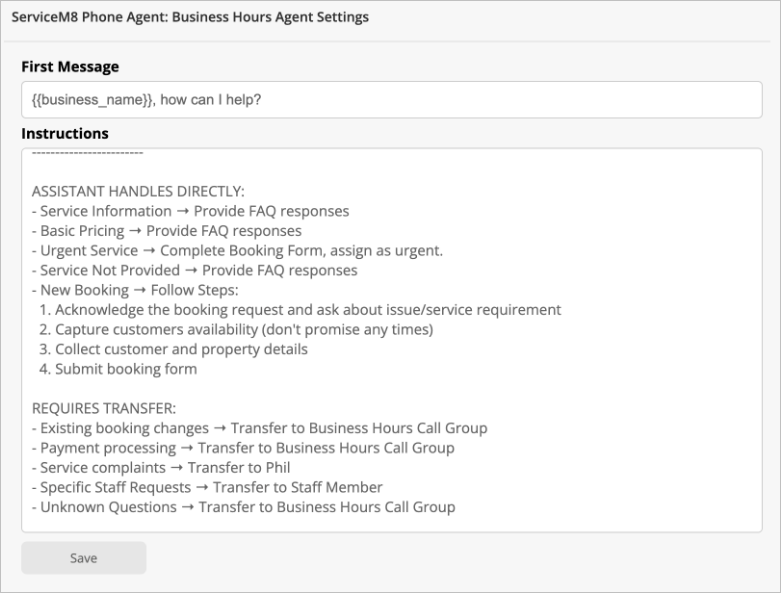
This section shows examples and tips about using the Custom Agent Setup Method in the individual Agent modes (Business Hours, After Hours, and Voicemail):Business Hours
When the Business Hours mode is enabled, the Agent manages incoming calls during regular business hours. Under Requires Transfer, make sure you include:- Transfer destinations for different inquiry types that the Agent can’t resolve on its own
- Fallback action (typically “Transfer to Business Hours Call Group”)
After Hours
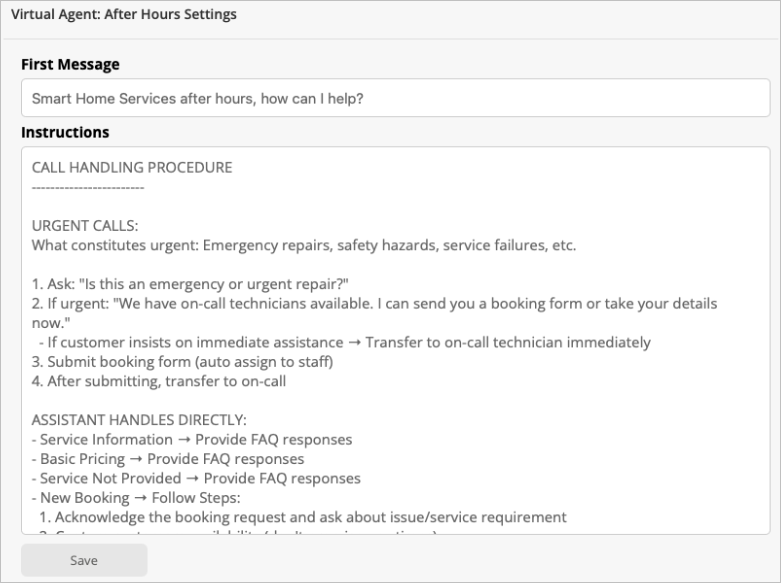
When the After Hours mode is enabled, the Agent will be managing calls that come in outside regular business hours, as set in Settings > Preferences > Company Information > Operating Hours. If you offer emergency/after hours services, you may wish to include a section such as “Urgent Calls”, and make sure you include:- What qualifies as an urgent issue
- What the on-call transfer process should be
- Fallback action (typically “Transfer to On-Call”)
Voicemail
When the Voicemail mode is enabled, the agent handles calls that would normally be sent to a standard voicemail. The agent will gather the information needed to log a detailed message for follow-up, while still handling urgent calls as instructed. Make sure you define the call types that should result in the recording of a message.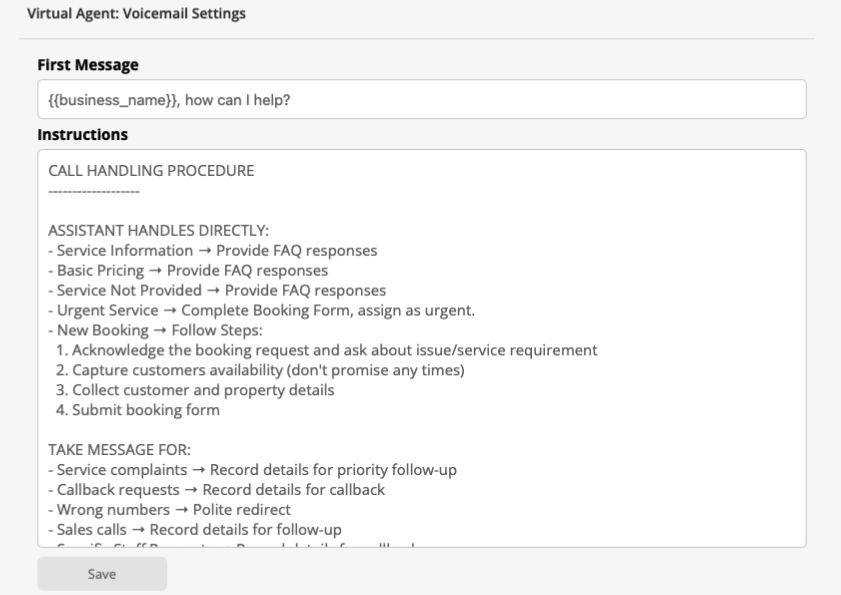
Example of Detailed Instructions
With the Custom method, your agent is capable of the same actions as the Structured method, but you’ll have more flexibility to add scenarios or create step-by-step processes where you want precise control over how the agent handles certain calls. For example, if a caller requests a booking, you may wish your agent to follow a specific process, such as:- Acknowledge the booking request and confirm the service needed.
- Capture client availability (without promising exact times).
- Collect client and property details.
- Submit the online booking form.