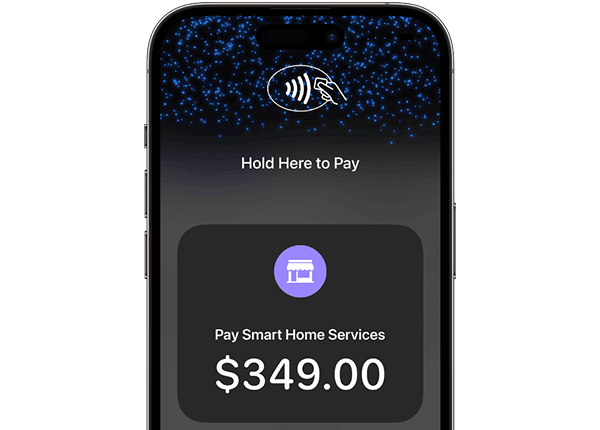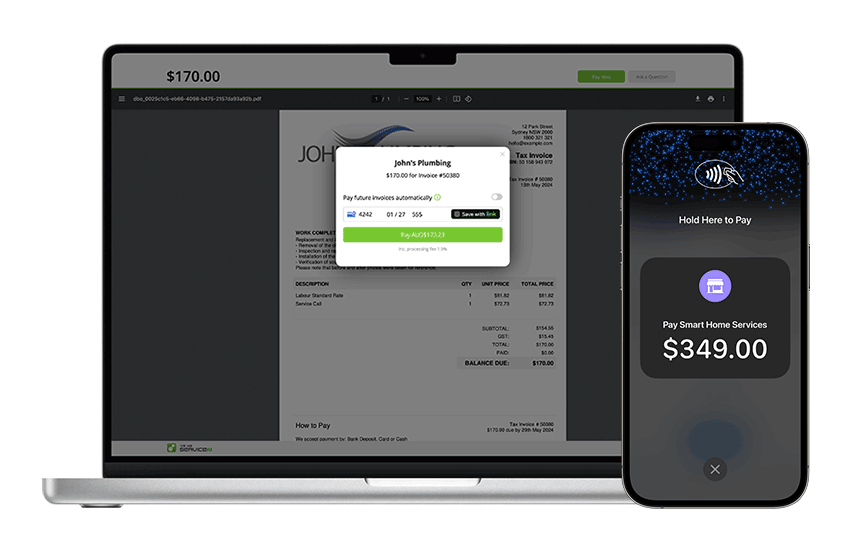

- Initial Holding Period: your first ServiceM8 Pay payout will take 7 to 14 days, from the date of your first live payment, to arrive in your bank account. During this period, you won’t receive any new payments. After this, you’ll switch to next-business-day payments. Note that even if you’ve used the Stripe Payments add-on for some time, this holding period still applies, so you might consider making the switch at a time which minimises disruption to your cash flow.
- Subscription Plan Required: ServiceM8 Pay is only available on our monthly subscription plans. If you’re currently paying “per job”, you’ll need to update your subscription to a monthly plan e.g. Starter, Growing etc. While this is a one-way change to how you pay for ServiceM8, our plans represent great value. You should also consider the benefits of ServiceM8 Pay, as well as the rates on offer, which could represent significant savings for you and/or your clients.
- T&Cs: please review the ServiceM8 Pay Terms & Conditions.
- Auto-Payment for Recurring Jobs: if you have Recurring Jobs for which clients have opted in to “Pay future invoices automatically” — this will not carry over with the change from the Stripe Payments add-on to ServiceM8 Pay, as this feature is not supported with ServiceM8 Pay.
1. Update your ServiceM8 iOS app
Update your iPhones & iPads to the latest version of the ServiceM8 app available on the App Store. The minimum required is Version 12.0.6.2. Turn ON the ‘ServiceM8 Pay’ add-on
In ServiceM8 Add-ons, find ‘ServiceM8 Pay’ and turn it on.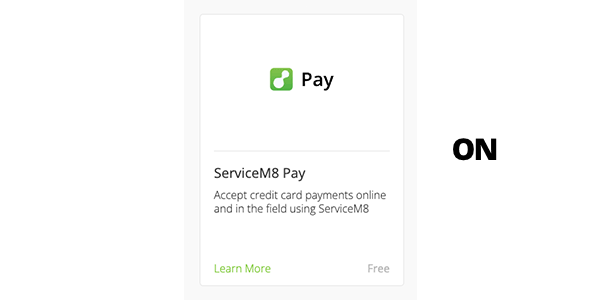
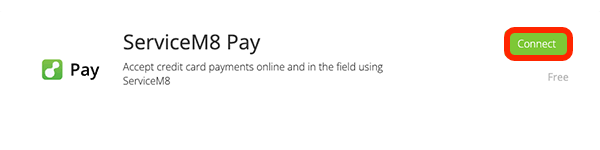
3. Complete the setup process
Follow the ServiceM8 Pay setup process: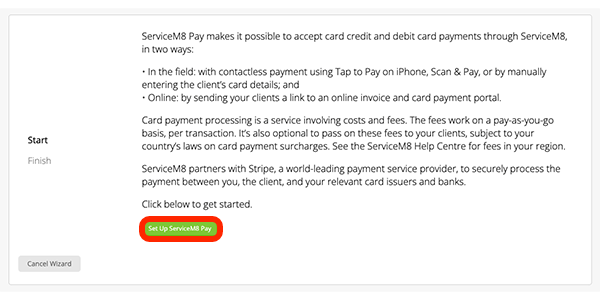
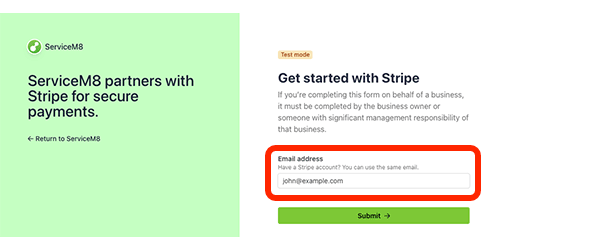
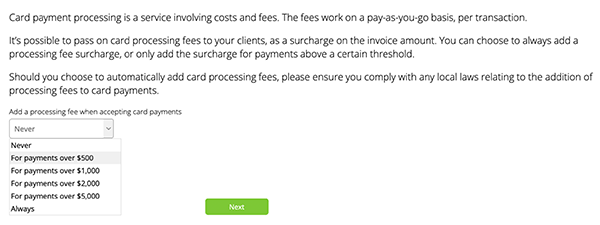

4. Review your reconciliation settings
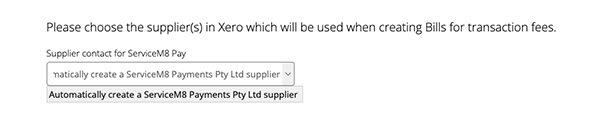
ServiceM8 can help deal with ServiceM8 Pay card processing fees in Xero or QuickBooks Online, with the ServiceM8 Pay Transactions feature. We recommend you consult your accountant/bookkeeper before activating this feature. When you process payments via ServiceM8 Pay, processing fees are deducted from the total payment amount before the remaining money is transferred into your bank account. This can make it hard to reconcile your bank statement with invoices, because the amount that the customer paid will not match the amount that is deposited into your bank account. ServiceM8 can help ease bank reconciliation by using a Clearing Account for ServiceM8 Pay transactions. The Clearing Account is an account set up in your Xero or QuickBooks, which represents the amount that you are owed. When you process a payment using ServiceM8 Pay, the balance of the Clearing Account will increase. When the money is paid into your Bank Account, the balance of the Clearing Account will decrease. To activate this feature, or update your reconciliation settings, in your online dashboard, go to Account > Settings > Preferences > Invoicing > ServiceM8 Pay Transactions:
5. Set up Tap to Pay on iPhone (AUS, CA, UK & USA)